top of page

Canon C3530 Maintenance Tips: Maintaining Your Canon c3530 Effectively

The Canon c3530 is a reliable multifunction printer designed for busy offices. To keep it running smoothly, regular maintenance is essential. Proper care prevents breakdowns and extends the machine’s life. This guide offers clear, practical steps to maintain the Canon c3530 effectively. Follow these tips to ensure consistent performance and reduce downtime.


Canon C3530 Maintenance Tips


Maintaining the Canon c3530 involves routine cleaning, timely replacement of parts, and proper handling. Here are key tips to keep the printer in top shape:


  • Clean the exterior and interior regularly. Dust and debris can cause paper jams and affect print quality. Use a soft, lint-free cloth to wipe the outside. For the inside, gently remove dust with a dry cloth or a small vacuum designed for electronics.

  • Check and replace consumables on time. Toner cartridges, drums, and fusers wear out with use. Replace them as recommended by the manufacturer. Using genuine parts ensures compatibility and quality.

  • Use the correct paper type and size. Feeding the wrong paper can cause jams and damage. Always load paper according to the specifications in the user manual.

  • Run cleaning cycles. The Canon c3530 has built-in cleaning functions. Use these regularly to clear print heads and rollers.

  • Keep firmware updated. Firmware updates fix bugs and improve performance. Check Canon’s website or your supplier for updates.


Using a canon c3530 maintenance kit can simplify many of these tasks. The kit includes essential parts and tools designed for this model. It helps maintain print quality and reduces the risk of unexpected failures.


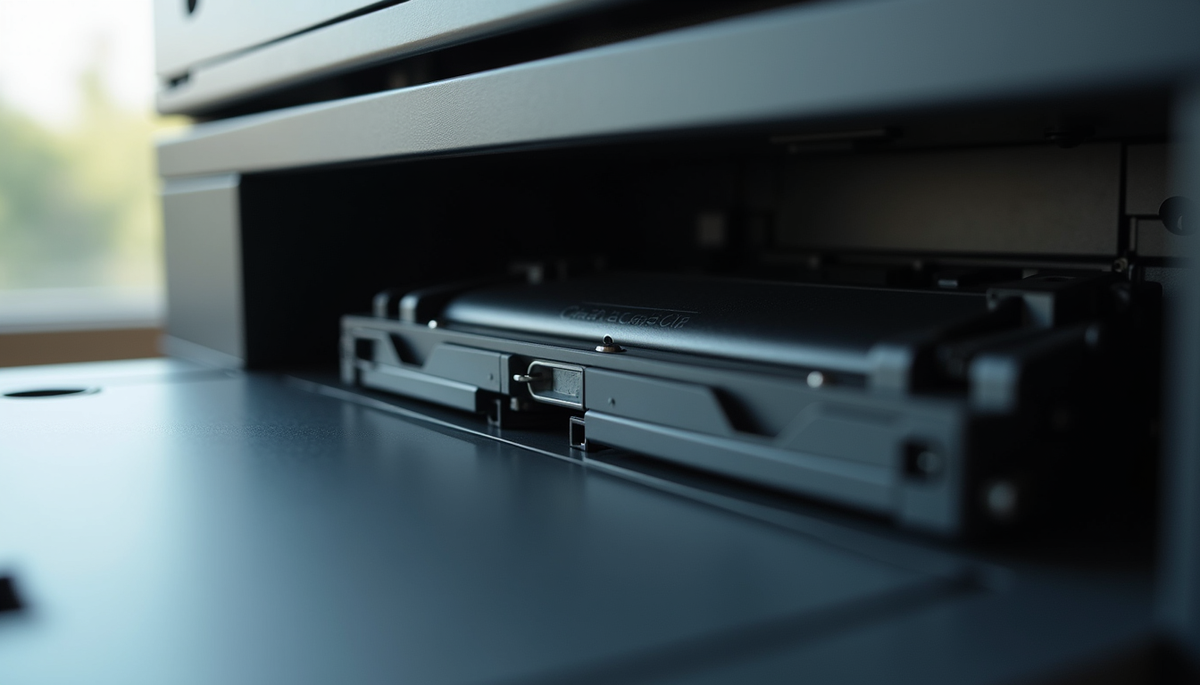
Close-up view of Canon c3530 printer interior showing toner cartridge slot

How to Clean the Canon c3530 Properly


Cleaning the Canon c3530 is simple but must be done carefully. Follow these steps:


  1. Turn off the printer and unplug it. Safety first.

  2. Open the front cover. Remove the toner cartridge carefully.

  3. Use a soft, dry cloth to wipe dust inside. Avoid touching the drum surface.

  4. Clean the paper feed rollers. Use a damp cloth with water only. Rotate rollers manually to clean all sides.

  5. Wipe the exterior with a dry cloth. Avoid liquids on buttons or screens.

  6. Reinstall the toner cartridge and close the cover.


Do this cleaning every month or more often if the printer is in a dusty environment. Regular cleaning prevents paper jams and keeps prints sharp.


Eye-level view of Canon c3530 paper feed rollers being cleaned

What is the Admin Password for c3330?


The Canon c3330 is a similar model to the c3530. For security, the default admin password is often set by the administrator or the service provider. If you need to access the admin settings:


  • Check the user manual or service guide for default passwords.

  • Contact your supplier or service technician if the password is unknown.

  • Avoid sharing the admin password widely to maintain security.


Changing the default password after first use is recommended. This protects your device from unauthorized access.


Replacing Parts and Using the Canon C3530 Maintenance Kit


Some parts of the Canon c3530 wear out over time. These include the drum unit, toner cartridge, and fuser unit. Replacing these parts promptly keeps the printer working well.


  • Drum unit: Replace after about 30,000 pages or when print quality drops.

  • Toner cartridge: Replace when toner runs low or prints become faint.

  • Fuser unit: Replace if paper jams increase or prints show smudges.


A canon c3530 maintenance kit contains these parts and tools needed for replacement. Using the kit ensures you get the right components and instructions. It saves time and reduces errors during maintenance.


Always follow the user manual for part replacement. Turn off the printer and let it cool before handling internal parts. Dispose of used parts responsibly.


Tips for Preventing Common Issues


Preventing problems is better than fixing them. Here are some tips to avoid common Canon c3530 issues:


  • Avoid overloading the paper tray. Overfilling causes jams.

  • Use high-quality paper. Cheap paper can shed fibers and cause blockages.

  • Keep the printer in a clean, dry place. Humidity and dust affect performance.

  • Do not force paper through the machine. If a jam occurs, follow the manual to clear it gently.

  • Schedule regular maintenance checks. This helps catch issues early.


Following these tips reduces downtime and keeps your printer reliable.


Keeping Your Canon c3530 Running Smoothly


Regular maintenance is key to the Canon c3530’s longevity. Clean the machine often, replace parts on time, and use genuine supplies. Use the canon c3530 maintenance kit to simplify upkeep. Stay proactive with updates and care.


By following these steps, the Canon c3530 will continue to deliver high-quality prints and dependable service. This helps businesses maintain productivity and avoid costly repairs. Proper maintenance is an investment in your office’s efficiency and success.


Comments


Offix Business Centre Sdn Bhd

201101016952 (945088-A)

KL SHOWROOM AND FACTORY

NO.4, JALAN BS 9/13,TAMAN BUKIT SERDANG, SEKSYEN 9, 43300 SERI KEMBANGAN, SELANGOR.

MELAKA BRANCH

(HQ)

No.3,Jalan PS3, Plaza Semabok ,75050 Melaka.

(Ayer Keroh)

No.64, Jalan TU42, Taman Tasik Utama,75450 Ayer Keroh, Melaka.


MUAR BRANCH

No.22& 1st flr, Jalan sutera 1/6, sutera, Taman Sungai Abong, 84000 Muar, Johor, Malaysia.

Tel: +6019-6611557

Opening Hours: 9am - 6pm

© 2020 by Offix Business Centre Sdn Bhd. Proudly created with Wix.com


bottom of page